MCP server · ChatGPT
Connect ChatGPT to your project board with the Planner.day MCP server
Planner.day connects to ChatGPT through its built-in MCP server, which gives ChatGPT 43 tools to create tasks, update status, read sprints and dashboards, and search team chat. You install the Planner.day plugin or add the MCP endpoint as a custom MCP server, approve the workspaces on a consent screen, and ChatGPT asks before it changes anything.
Steps checked on 20 November 2026 against OpenAI's developer documentation.
Before you start
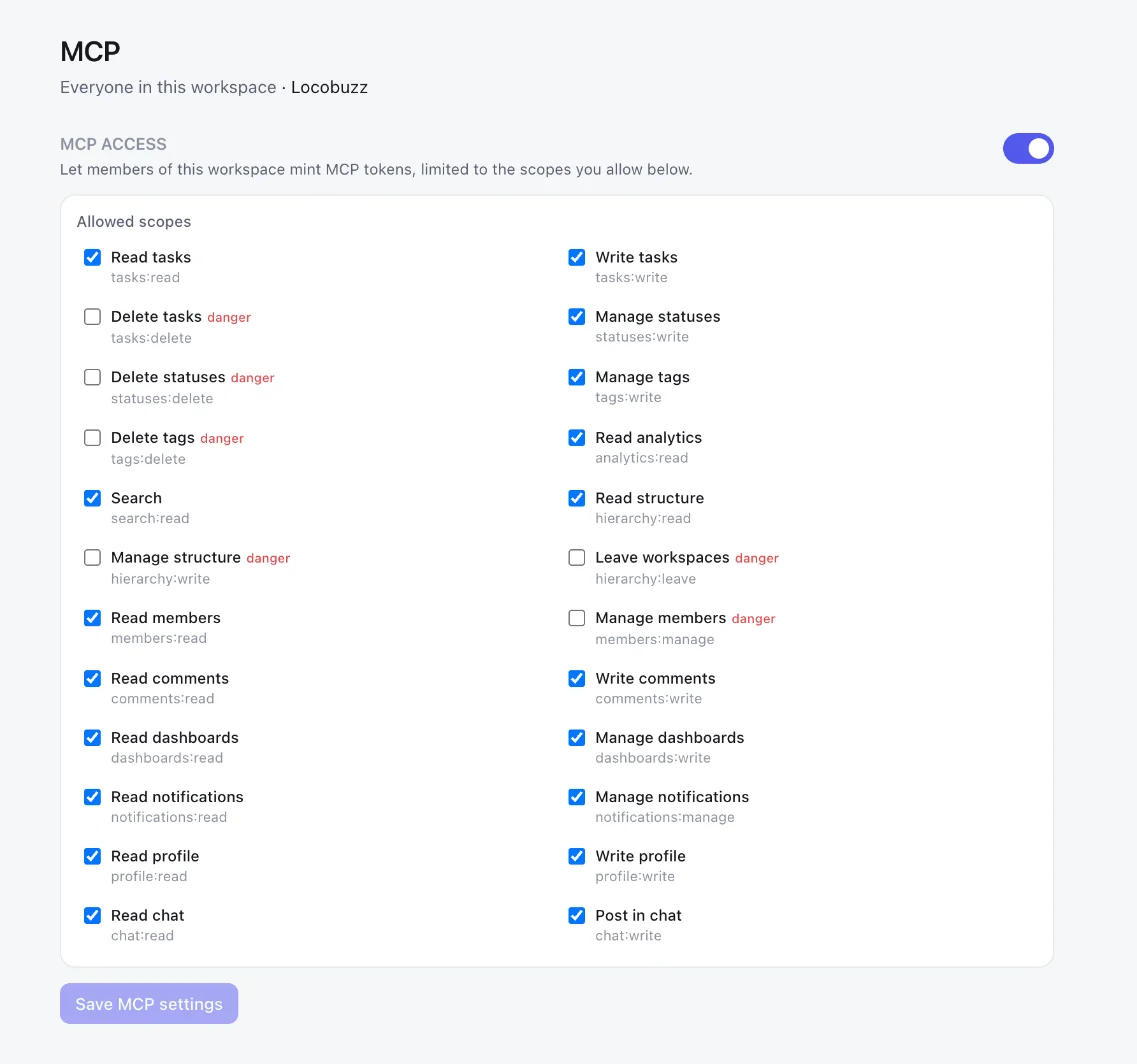
A workspace admin switches MCP on once: in Planner.day open Settings, then Workspace features, then MCP, turn on Enable MCP for this workspace and tick the permissions under Allowed scopes that members may grant. The consent screen offers only what is ticked.
The MCP server is on Basic and Pro. Basic is ₹500 and Pro ₹1,000 per user per month with a GST invoice, and the first month on either is free. See pricing.
ChatGPT calls a connected MCP server a plugin; older guides say app or connector. The steps below use the current names.
Install Planner.day from the ChatGPT directory
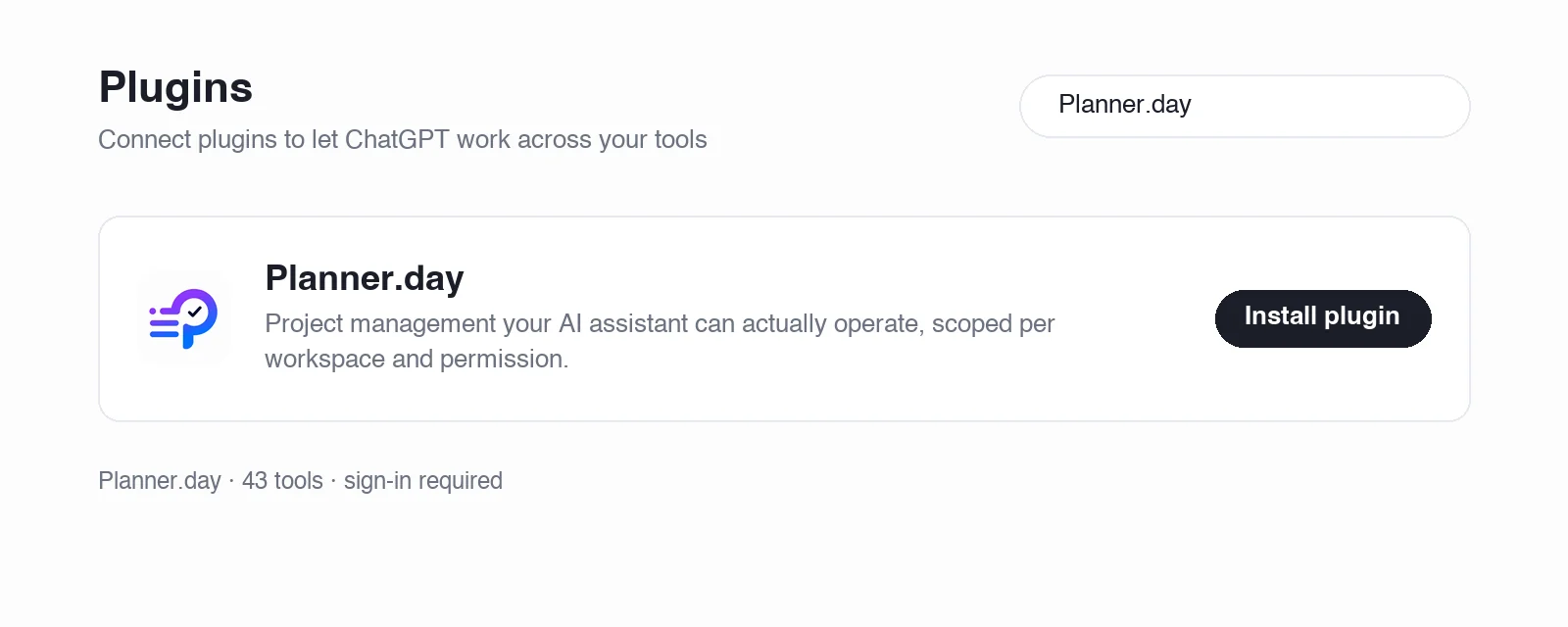
- In ChatGPT, open Plugins in the sidebar (chatgpt.com/plugins) and search for Planner.day.
- Open the entry, review its tools, and select Install plugin (a plus button on some layouts).
- When prompted, select Connect. A Planner.day page opens; sign in if that browser is not already signed in.
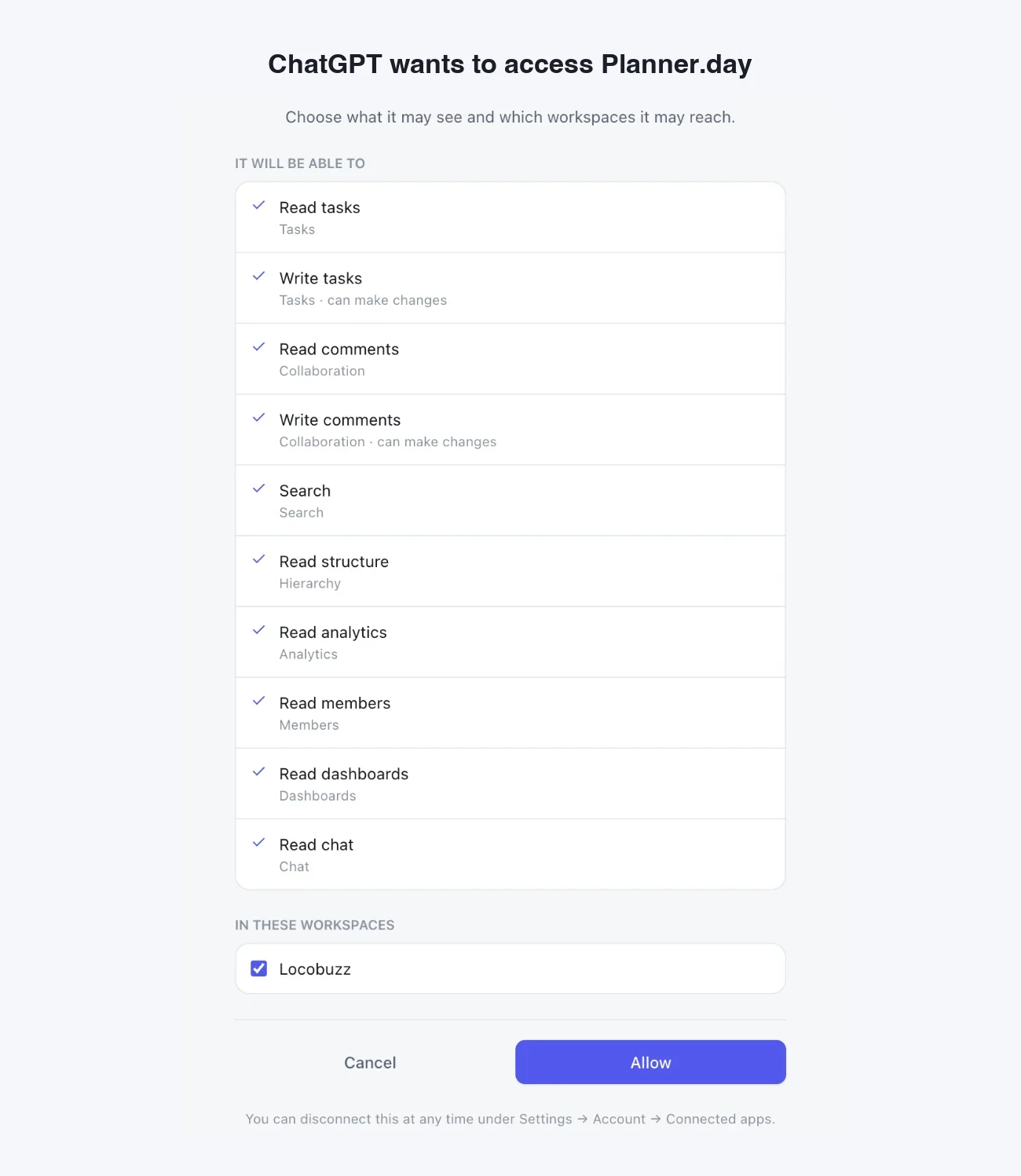
- The consent screen is headed with the connecting app's name and "wants to access Planner.day". Under It will be able to, read the permissions the connection asks for. Under In these workspaces, tick the workspaces ChatGPT may reach.
- Click Allow. ChatGPT returns to the plugin page with Planner.day installed.
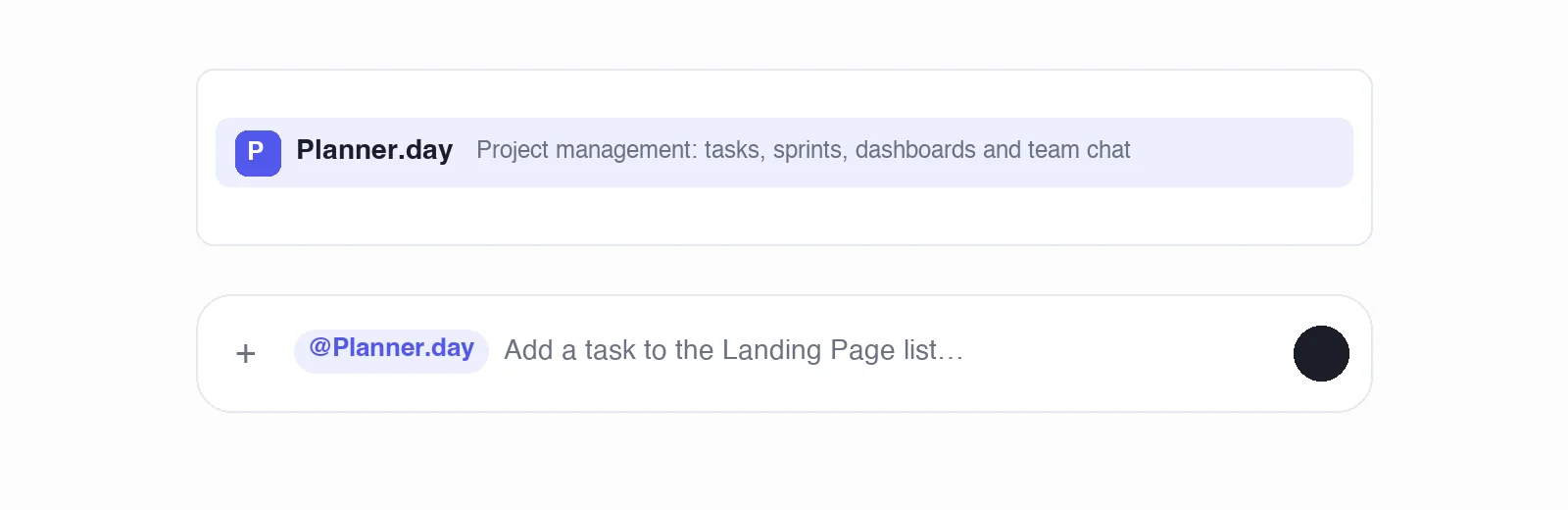
- Start a new chat. Type @ and choose Planner.day, or simply describe what you want and ChatGPT picks the tool.
If Planner.day does not appear for your account, or the install control is unavailable (OpenAI notes it can be hidden by region, workspace settings or plan), use the custom MCP server route below.
Add it as a custom MCP server instead
Adding a custom server is governed by your account and workspace policies: on Business, Enterprise and Edu workspaces an admin decides who may add one. With that in place:
- Open Plugins (chatgpt.com/plugins) and select Add at the top right, then Add custom MCP server.
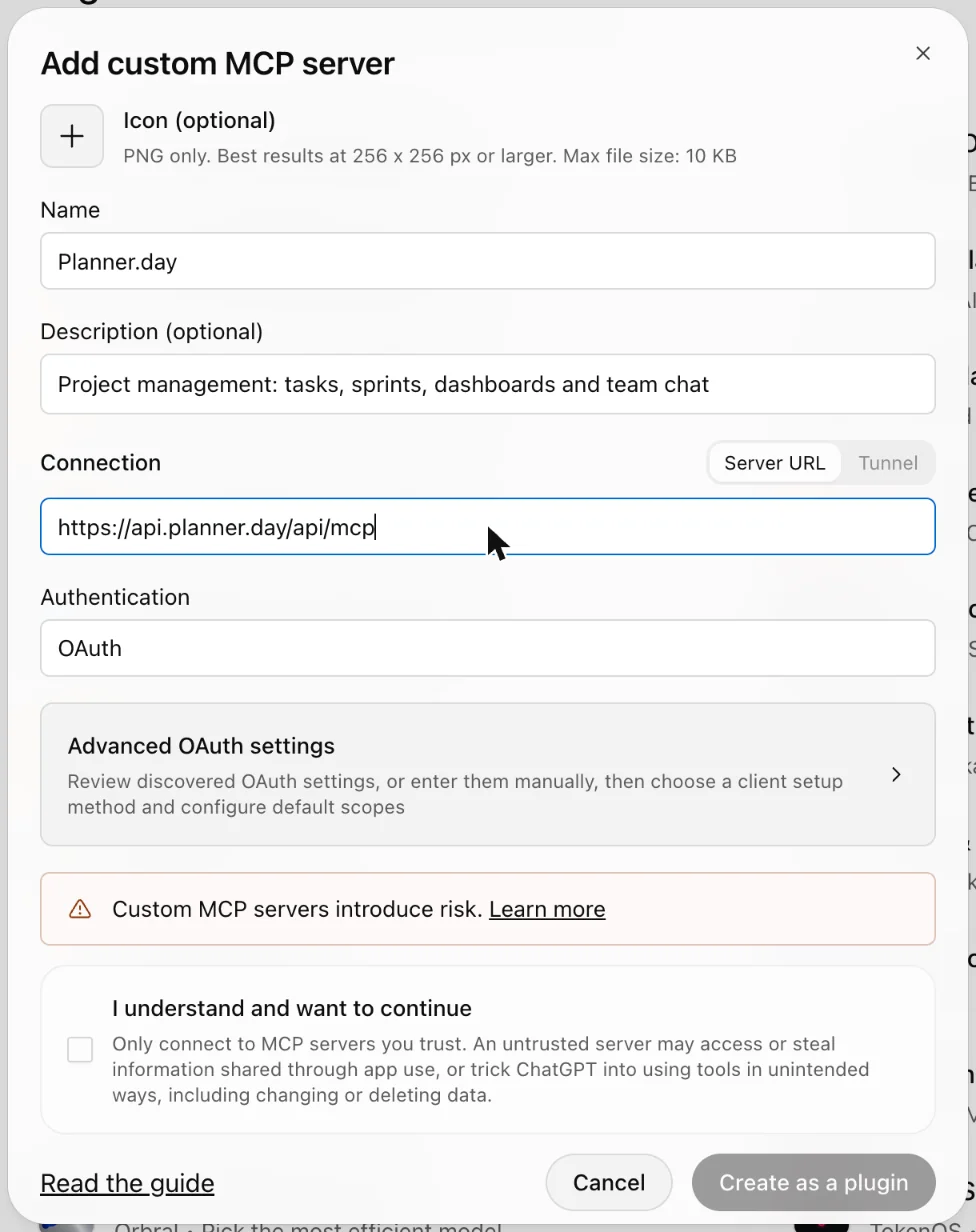
- Name it Planner.day and add a one-line description.
- Under Connection, keep Server URL and enter the server URL exactly:
https://api.planner.day/api/mcp. - Under Authentication, keep OAuth. Planner.day registers the ChatGPT client automatically and opens its own consent screen.
- Read the risk notice and tick I understand and want to continue.
- Select Create as a plugin. ChatGPT discovers the tools and shows them for review.
- Install the plugin, sign in to Planner.day, tick the workspaces, and click Allow.
- Start a new chat and call it with @Planner.day.
If the tool list changes after an update, open the connection under Plugins and select Refresh.
ChatGPT asks before it changes anything
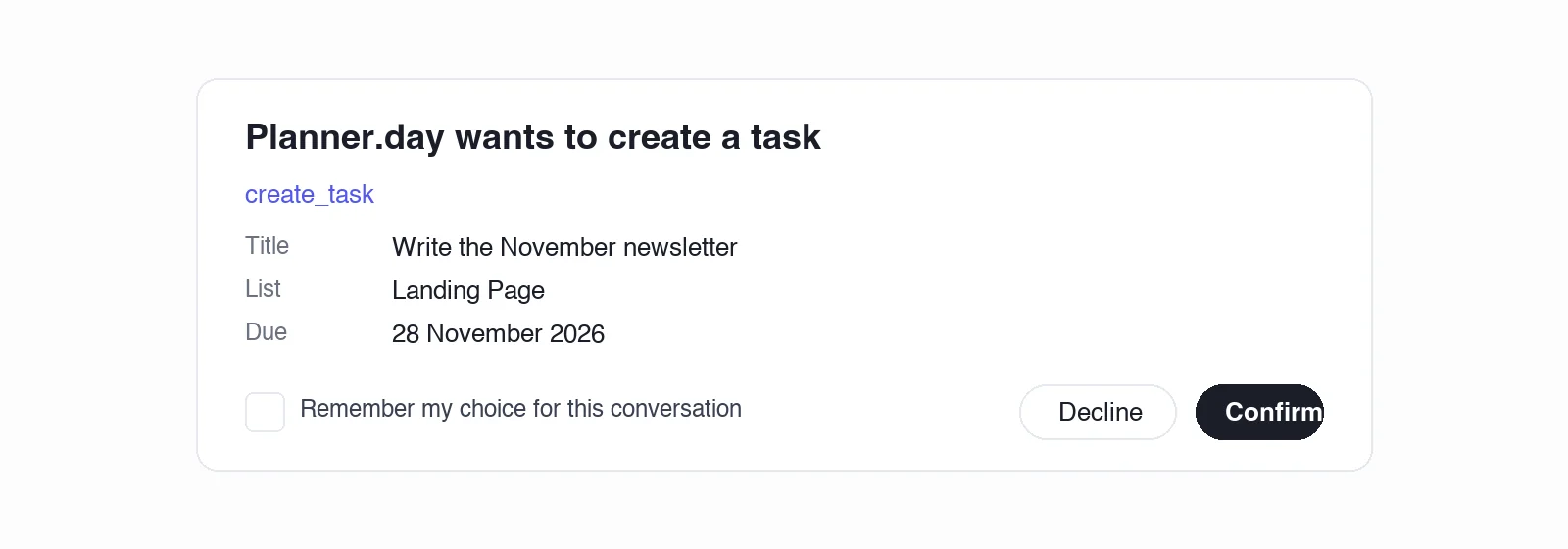
By default ChatGPT shows a confirmation before each write action, such as creating a task or changing a status, and lets you remember an approve or deny decision for the rest of that conversation. New conversations ask again. Read-only tools carry a read-only annotation, so listing tasks or reading a dashboard needs no confirmation. On the Planner.day side the connection is limited to the permissions and workspaces you approved, and every change is recorded in the task's activity under your name.
Eight things to ask ChatGPT
Each prompt names the tools ChatGPT reaches for. Where a reply is shown, it is the one ChatGPT gave in a real workspace, captured on the date shown.
-
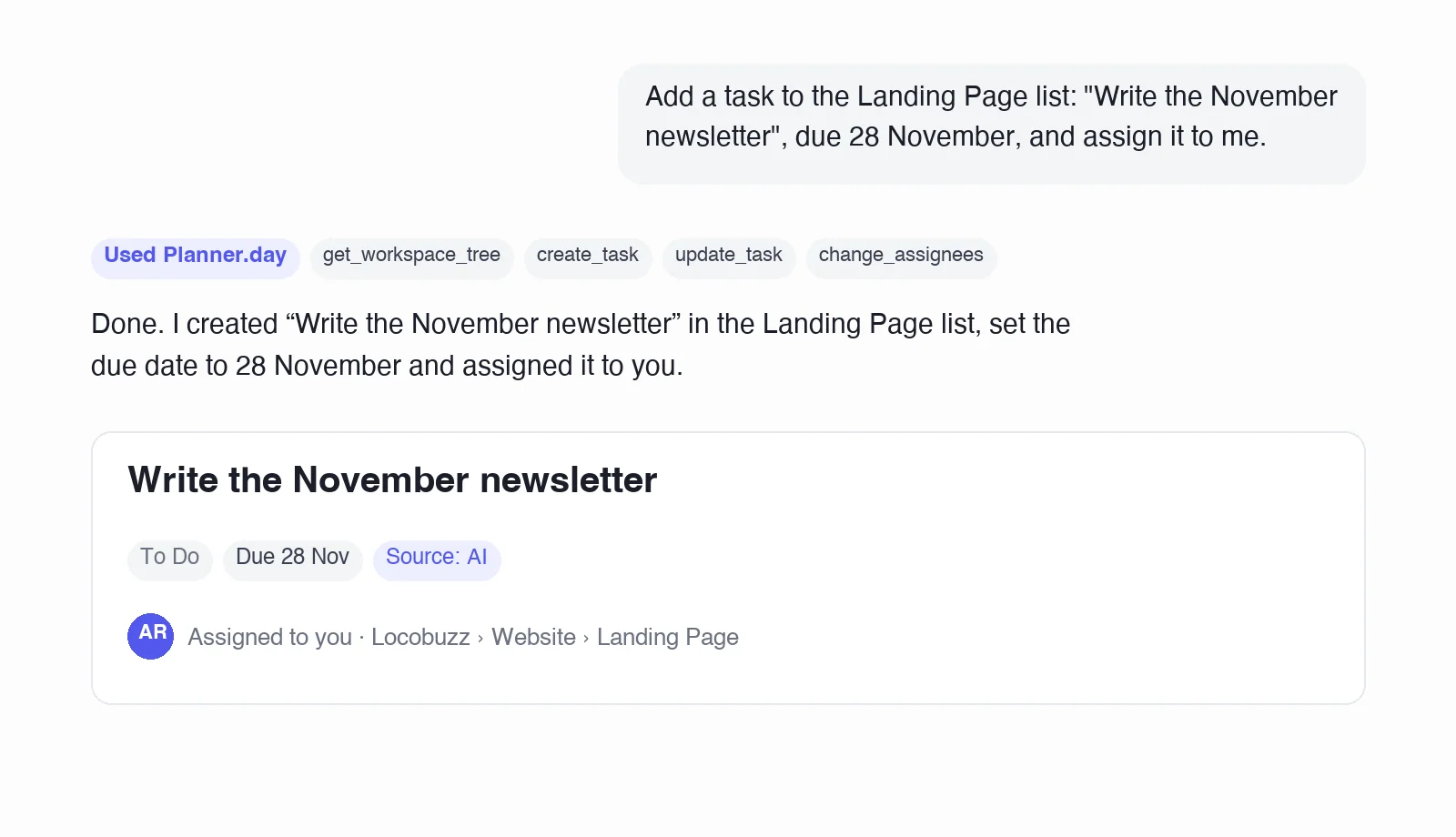
“Add a task to the Landing Page list: "Write the November newsletter", due 28 November, and assign it to me.”
get_workspace_treecreate_taskupdate_taskchange_assignees -
“List my open tasks due this week, oldest first, with their status.”
get_my_assigned_taskslist_statuses -
“Which tasks in the Mobile app space have had no activity for 14 days? Give me the owner of each.”
list_tasksget_activity -
“Mark "Update the privacy policy" as Done and comment: shipped in 1.0.2.”
search_taskslist_statuseschange_task_statusadd_comment -
“Pull this month's Workload numbers and tell me who has more than 40 hours of estimates.”
get_person_analyticsget_metric -
“Search chat for anything about the Figma handoff and list the open questions.”
search_chatget_chat_messages -
“Compare this sprint's committed and done effort with the last two sprints.”
list_sprintsget_sprint -
“Put a 6 hour estimate on every subtask of "Migrate the billing service" that has none.”
get_taskset_task_estimate
What ChatGPT can do in Planner.day
ChatGPT sees the tools your connection permits and nothing else. A sign-in from ChatGPT asks for the ten permissions in the first eight rows, and the consent screen shows them by these names.
| What you ask for | Tools ChatGPT uses | Permission on the consent screen |
|---|---|---|
| Find and read work | list_tasks get_task search_tasks get_my_assigned_tasks list_statuses | Read tasks, Search |
| Create and change tasks | create_task update_task change_task_status change_assignees change_task_tags set_task_estimate create_subtask | Write tasks |
| Comments and history | get_comments get_activity add_comment | Read comments, Write comments |
| Structure and people | list_workspaces get_workspace_tree list_members | Read structure, Read members |
| Dashboards and analytics | get_workspace_stats get_metric get_person_analytics get_team_availability list_dashboards get_dashboard | Read analytics, Read dashboards |
| Sprints | list_sprints get_sprint | Read structure, Read tasks |
| Team chat | list_chat_channels get_chat_messages search_chat get_chat_decisions | Read chat |
| Files and designs on a task | list_task_attachments get_attachment_download_url list_task_designs | Read tasks |
| Separate scopes, granted to a token | delete_task create_space create_list create_tag create_status invite_member change_member_role post_chat_message chat_message_to_task whoami | Delete tasks, Manage structure, Manage tags, Manage statuses, Manage members, Post in chat, Read profile |
43 tools in all; each one is described on the MCP server page. Deleting is its own scope and deletes are soft, so a connection that creates and updates tasks cannot remove them, and a removed task can be restored. A token is the whole authority for its connection. Sprints, dashboards and team chat each have their own page.
If something does not work
The consent screen says none of your workspaces have MCP switched on.
A workspace admin enables it under Settings, Workspace features, MCP. Then install or connect again.
A permission shows as "Not granted" on the consent screen.
The workspace's allowed scopes cap the connection, and the screen names what was withheld. Ask the admin to tick that scope, then connect again; approving again replaces what ChatGPT can reach.
ChatGPT does not offer Planner.day in an old chat.
Tools appear in chats started after the install. Start a new chat and type @Planner.day.
ChatGPT keeps asking for confirmation.
That is its default for every write action. Choose the remember option to approve the rest of the conversation; the next conversation asks again.
ChatGPT says a tool was refused.
The connection lacks that scope. Deleting tasks, creating spaces or lists, inviting people and posting in chat are separate scopes, granted to a token under Tokens & connected apps for a client that needs them.
ChatGPT says the daily limit was reached.
Each connection has 600 tool calls per day (UTC) and 60 requests a minute; the counter resets at 00:00 UTC. A script that needs more belongs on the REST API with an API token.
You want to stop the connection.
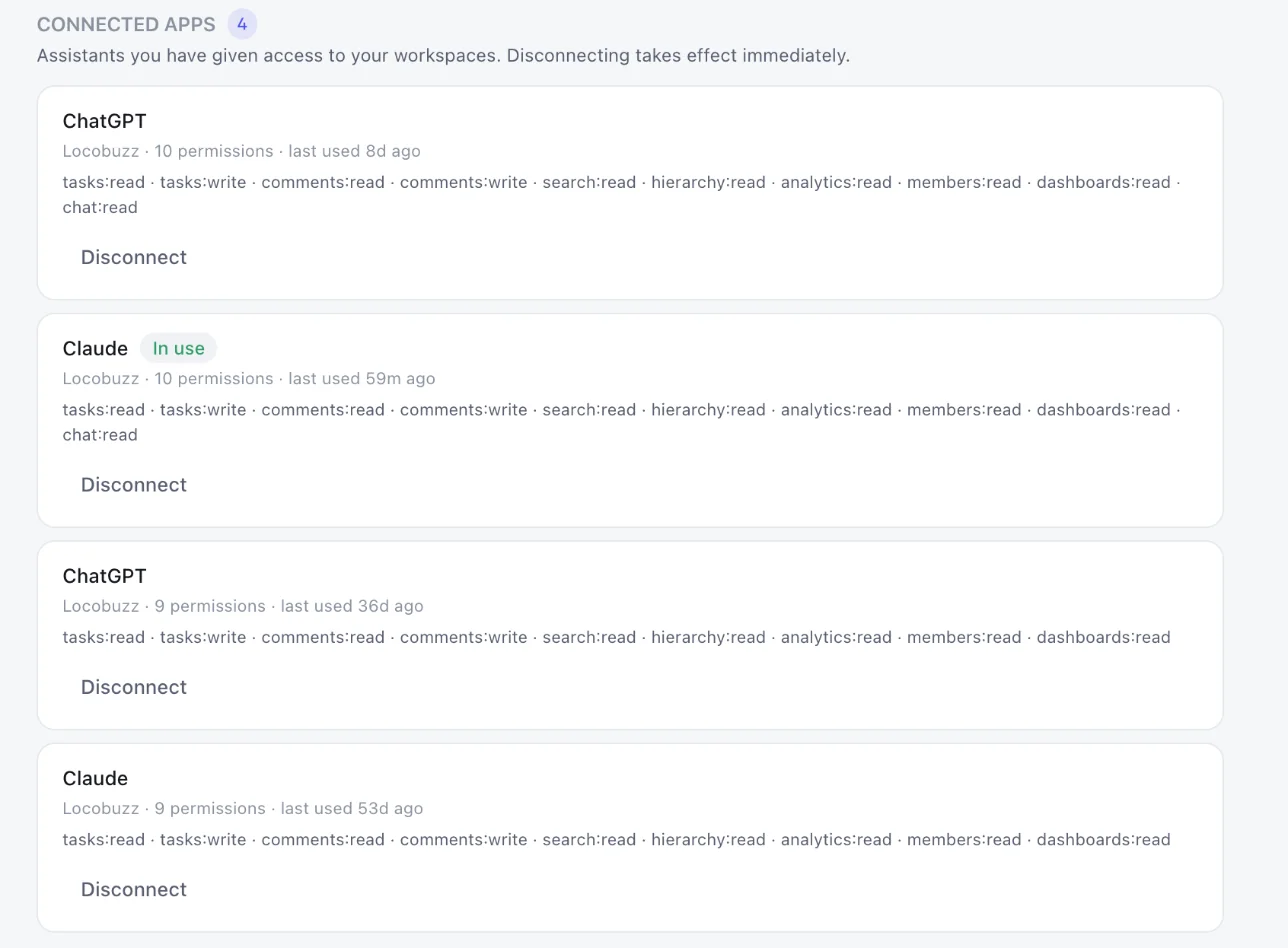
Uninstalling the plugin in ChatGPT does not end the MCP connection; disconnect it in ChatGPT's settings as well. In Planner.day, open Settings, Account, Tokens & connected apps and disconnect it there. Either side ends the access.
Questions
How do I add the Planner.day MCP server to ChatGPT?
Open Plugins in the ChatGPT sidebar, find Planner.day and select Install plugin, then sign in to Planner.day and click Allow on the consent screen. Or select Add, then Add custom MCP server, enter https://api.planner.day/api/mcp with OAuth, and select Create as a plugin.
Does ChatGPT need developer mode to use Planner.day?
Installing the listed plugin needs no developer setting. Adding a custom MCP server is subject to your account and workspace policies; on Business, Enterprise and Edu workspaces an admin controls who may add one, per OpenAI's documentation on 20 November 2026.
What can ChatGPT do in Planner.day?
ChatGPT gets 43 tools: create and update tasks, change status and assignees, add comments, read sprints, dashboards and per-person analytics, search tasks, and read team chat and decisions. A sign-in grants ten permissions that cover 33 of those tools; the rest are granted to a token.
Will ChatGPT change my board without asking?
No. ChatGPT asks for confirmation before each write action by default and can remember your answer for one conversation. Read-only tools run without a prompt. Every change is recorded in the task's activity under your name.
Can ChatGPT delete tasks in Planner.day?
Only with the Delete tasks scope, which a sign-in does not request and which a workspace admin must allow. Deletes are soft, so a deleted task can be restored.
Which Planner.day plan includes the MCP server?
Basic and Pro. Basic is ₹500 and Pro ₹1,000 per user per month, billed in rupees with a GST invoice, and the first month on either plan is free. Planner.day is free for up to 5 people.
How do I disconnect ChatGPT from Planner.day?
Disconnect the MCP connection in ChatGPT's settings (uninstalling the plugin alone does not end it), and in Planner.day open Settings, Account, Tokens & connected apps and disconnect it there.
New to the protocol? Read what an MCP server is. Comparing trackers? See which project management tools have MCP servers.
Connect ChatGPT today.
Free for up to 5 people, and the first month on Basic or Pro is free.