MCP server · Claude
Connect Claude to your project board with the Planner.day MCP server
Planner.day connects to Claude through its built-in MCP server, which gives Claude 43 tools to create tasks, move work, read sprints and dashboards, and search team chat. You connect from Claude's connector directory, approve the workspaces on a Planner.day consent screen, and every call runs the same permission checks as the web app. No API key is involved.
Steps checked on 20 November 2026 against Anthropic's help centre.
Before you start
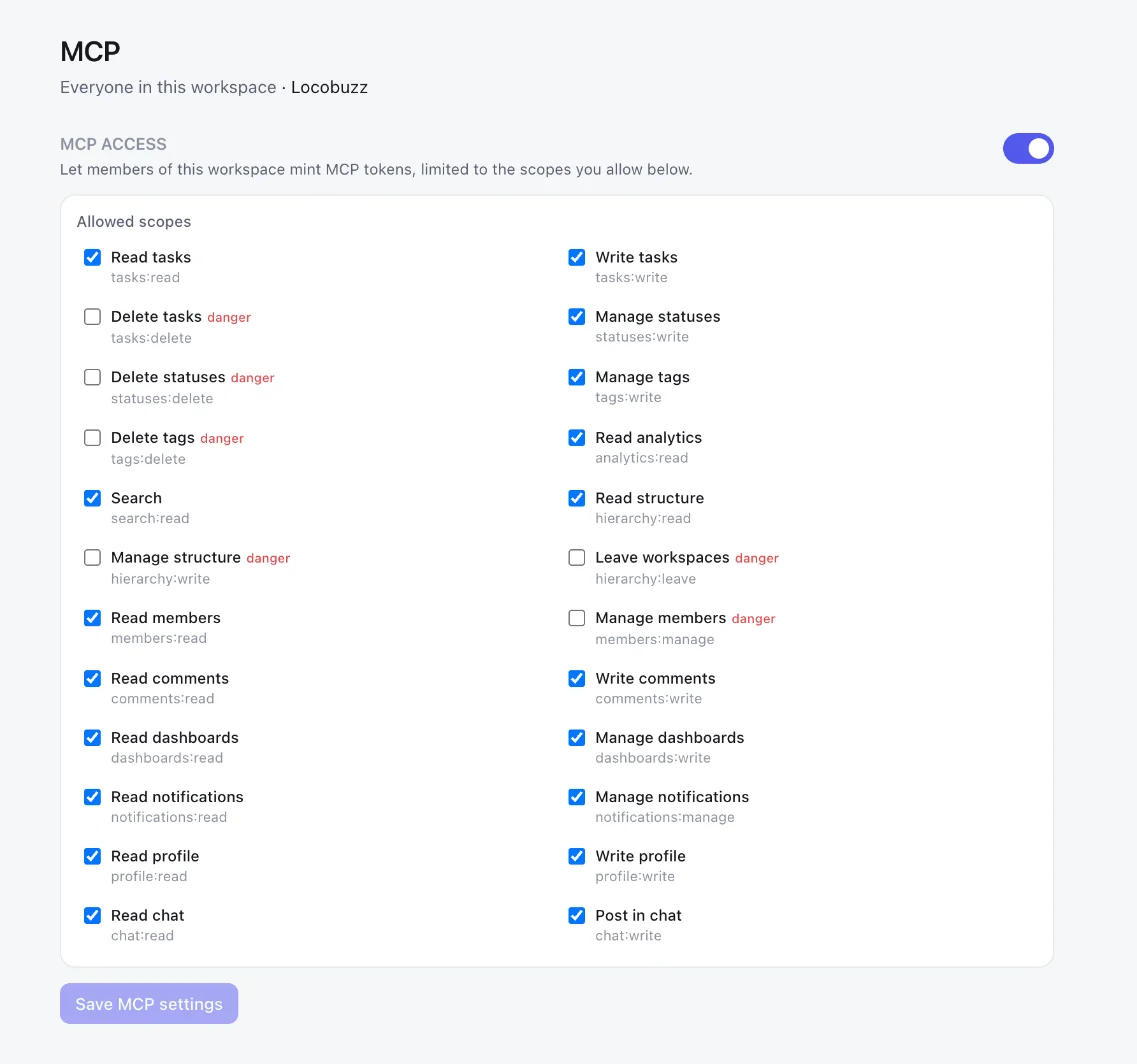
A workspace admin switches MCP on once. In Planner.day, open Settings, then Workspace features, then MCP. On the MCP access card, turn on Enable MCP for this workspace and tick the permissions under Allowed scopes that members may grant to an assistant. The consent screen later offers only what is ticked here, so the admin decides the ceiling and each person decides within it.
You need a Planner.day account on a Basic or Pro plan. Basic is ₹500 and Pro ₹1,000 per user per month with a GST invoice, and the first month on either is free. See pricing.
Connect from Claude's connector directory
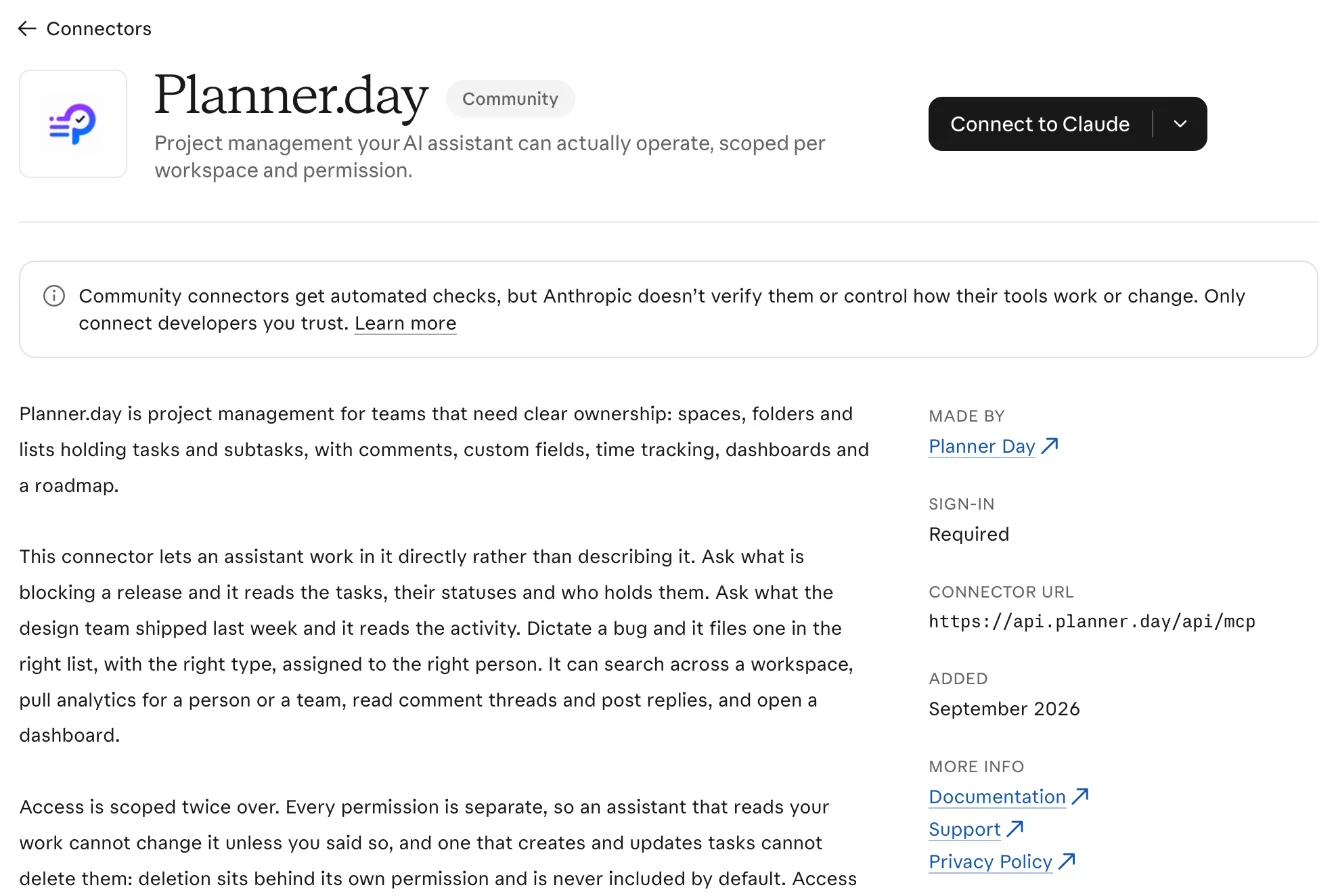
Planner.day is listed in Claude's connector directory, so the shortest route is to pick it there. The same steps work in Claude.ai and in Claude Desktop, which share the Connectors settings (remote connectors run from Anthropic's cloud, not from your machine).
- In Claude, open Customize, then the Connectors tab.
- Type Planner.day in the search box at the top right and open its entry (it carries a Community label).
- Review what it can do and click Connect to Claude.
- A Planner.day page opens. Sign in if that browser is not already signed in.
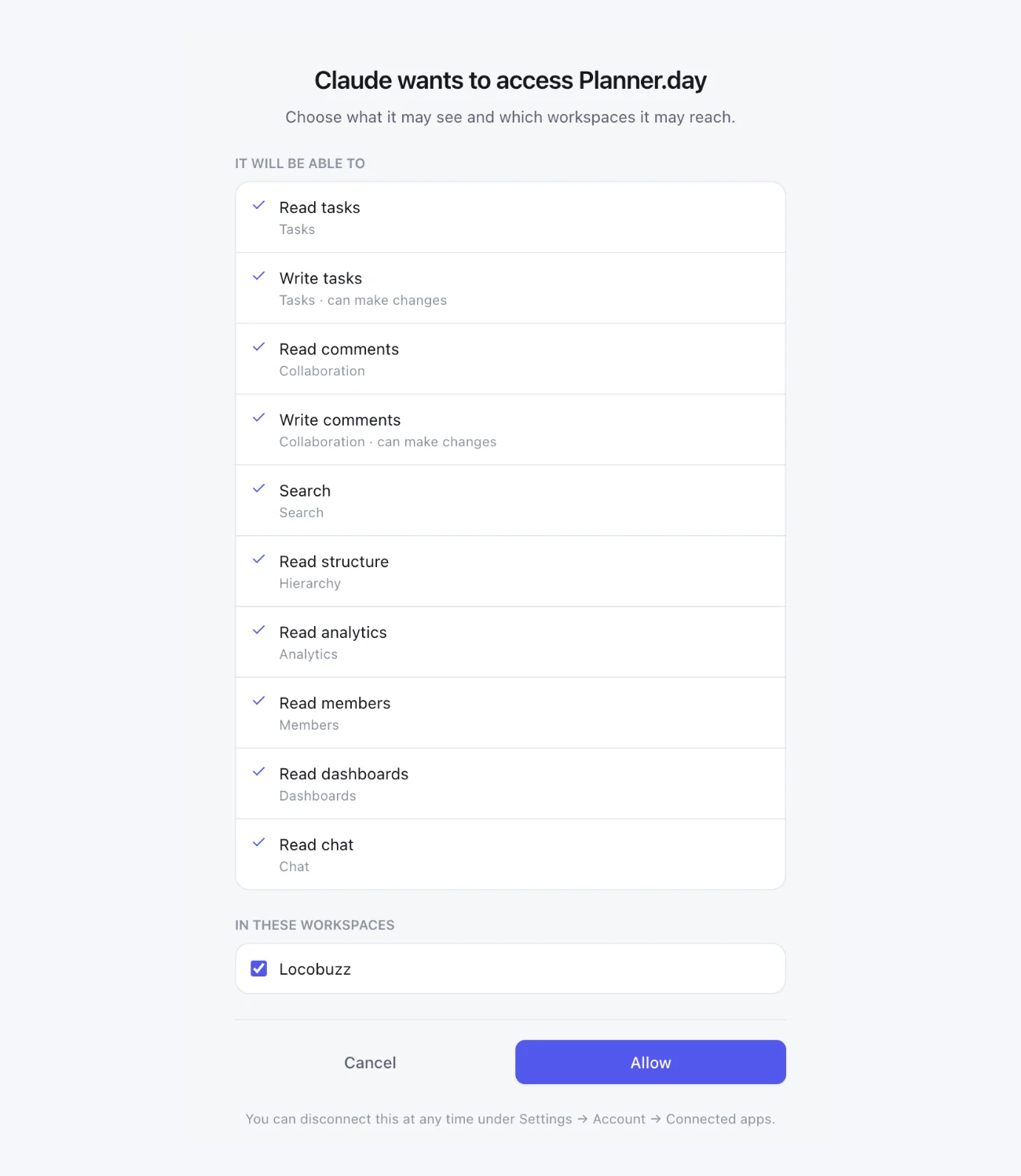
- The consent screen is headed "Claude wants to access Planner.day". Under It will be able to, read the permissions the connection asks for. Under In these workspaces, tick the workspaces Claude may reach.
- Click Allow. Claude returns to the connector page with Planner.day marked Connected.
On a Team or Enterprise plan, an Owner adds the connector under Organization settings, then Connectors, and each member connects to it individually from Customize, then Connectors, with the same consent screen.
Add it as a custom connector instead
If your organisation does not use the directory, or you prefer to enter the address yourself, add Planner.day as a custom connector. Claude's Free plan allows one custom connector; Pro and Max allow more, and on Team and Enterprise an Owner adds it.
- Open Customize, then Connectors.
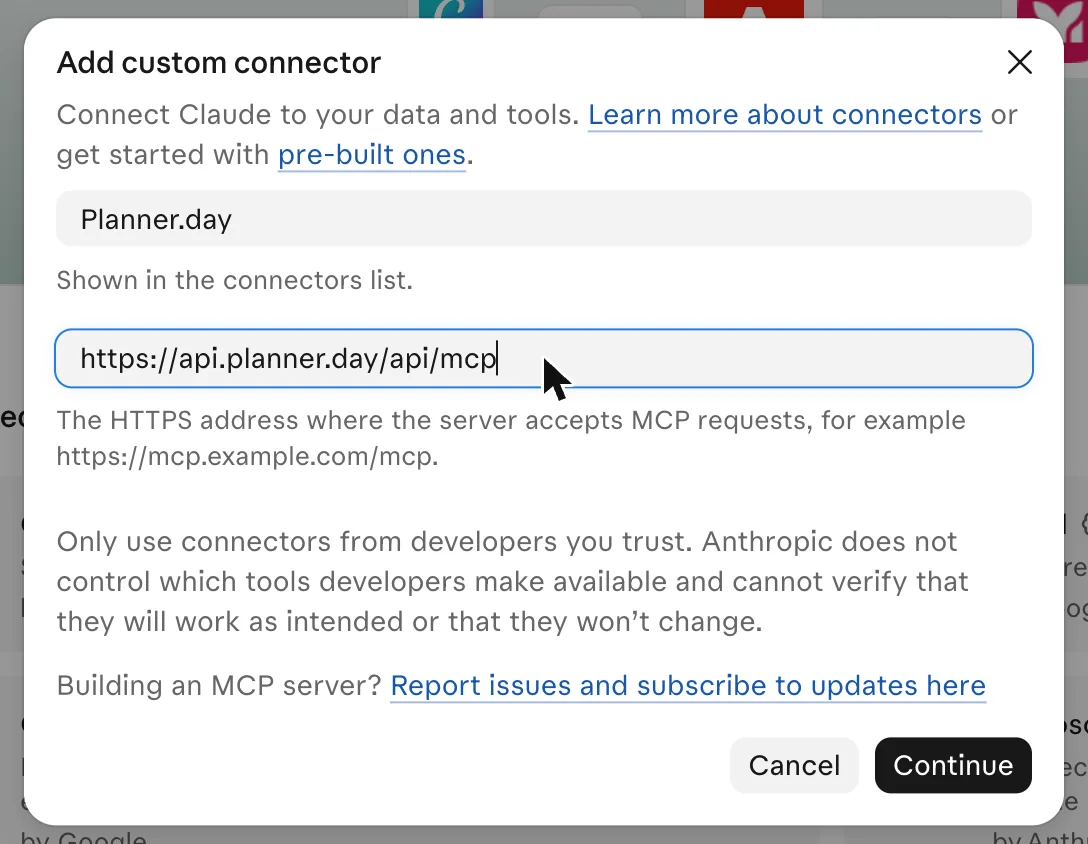
- Click Add, then Add custom connector.
- Name it Planner.day.
- Enter the MCP server URL exactly:
https://api.planner.day/api/mcp. Click Continue. - Review the detected authentication settings and click Continue.
- Under Authentication, choose Sign in now. Under OAuth client, keep the default: Planner.day registers the Claude client automatically. Leave Request headers empty.
- Click Add, then complete the same Planner.day sign-in and consent screen as above, and click Allow.
Claude Code
Claude Code takes the same endpoint from the terminal. Register it once, then sign in from inside a session:
claude mcp add --transport http planner https://api.planner.day/api/mcp
Start Claude Code, type /mcp, choose planner, and follow the browser sign-in.
It opens the same Planner.day consent screen, and the token is stored and refreshed by Claude
Code. Add --scope user to the command if you want the server in every project. To
sign out later, use Clear authentication in the /mcp menu.
If you would rather hold the credential yourself, mint a scoped token in Planner.day under Settings, Account, Tokens & connected apps, and pass it as a header:
claude mcp add --transport http planner https://api.planner.day/api/mcp \
  --header "Authorization: Bearer tvmcp_…"
A token is the whole authority for that connection: its scopes and its workspace list, nothing wider. This is also the route for scopes a sign-in does not request, such as deleting tasks.
Turn it on in a chat
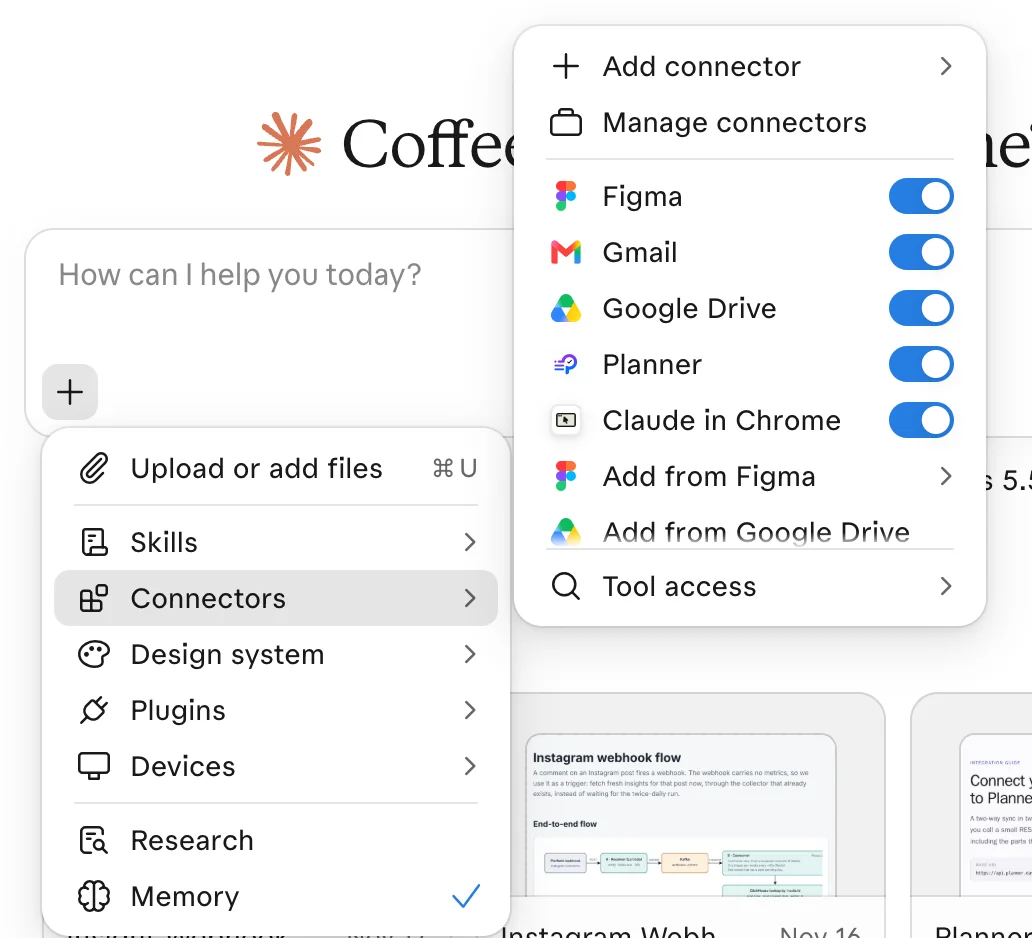
In any Claude conversation, click the + button at the lower left, choose Connectors, and switch Planner.day on. Claude then discovers the tools itself, filtered to what you allowed, and uses them when a request needs them. You can leave it on; Claude only calls a tool when the conversation calls for one.
Eight things to ask Claude
Each prompt names the tools Claude reaches for. Replace the names and lists with your own. Where a reply is shown, it is the one Claude gave in a real workspace, captured on the date shown.
-
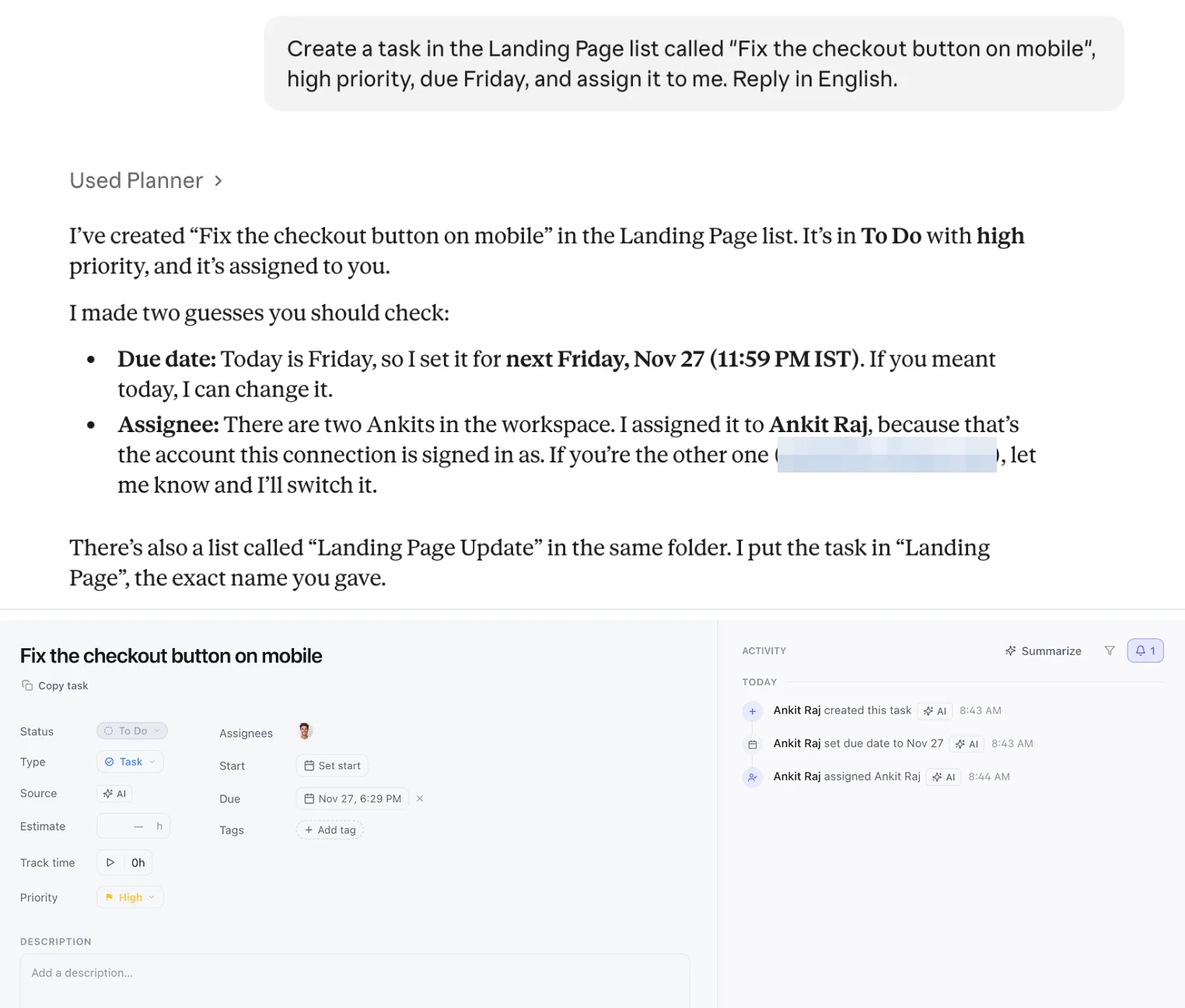
“Create a task in the Landing Page list called "Fix the checkout button on mobile", high priority, due Friday, and assign it to me.”
get_workspace_treecreate_taskupdate_taskchange_assigneesI've created "Fix the checkout button on mobile" in the Landing Page list. It's in To Do with high priority, and it's assigned to you. I made two guesses you should check: Due date: Today is Friday, so I set it for next Friday, Nov 27 (11:59 PM IST). If you meant today, I can change it. Assignee: There are two Ankits in the workspace. I assigned it to Ankit Raj, because that's the account this connection is signed in as. If you're the other one, let me know and I'll switch it. There's also a list called "Landing Page Update" in the same folder. I put the task in "Landing Page", the exact name you gave.
Reply captured 20 November 2026 -
“What is overdue in the Q4 launch space, grouped by owner?”
search_taskslist_tasksget_workspace_stats -
“Move every task I own that is tagged blocked to In progress, and add a comment saying I have picked it up.”
get_my_assigned_taskschange_task_statusadd_comment -
“Summarise the Delivery dashboard for this week in five bullets I can paste into Monday's update.”
list_dashboardsget_dashboardget_metric -
“Who has capacity next week, and what is each person carrying now?”
get_team_availabilityget_person_analytics -
“What did the design channel decide about the onboarding flow this month?”
get_chat_decisionssearch_chat -
“How is sprint 14 going: what was committed, what is done, and what looks at risk?”
list_sprintsget_sprintlist_tasks -
“Break "Launch the pricing page" into five subtasks with an hour estimate on each.”
get_taskcreate_subtaskset_task_estimate
What Claude can do in Planner.day
Claude sees the tools your connection permits and nothing else. A sign-in from Claude asks for the ten permissions in the first eight rows; the consent screen shows them by the same names.
| What you ask for | Tools Claude uses | Permission on the consent screen |
|---|---|---|
| Find and read work | list_tasks get_task search_tasks get_my_assigned_tasks list_statuses | Read tasks, Search |
| Create and change tasks | create_task update_task change_task_status change_assignees change_task_tags set_task_estimate create_subtask | Write tasks |
| Comments and history | get_comments get_activity add_comment | Read comments, Write comments |
| Structure and people | list_workspaces get_workspace_tree list_members | Read structure, Read members |
| Dashboards and analytics | get_workspace_stats get_metric get_person_analytics get_team_availability list_dashboards get_dashboard | Read analytics, Read dashboards |
| Sprints | list_sprints get_sprint | Read structure, Read tasks |
| Team chat | list_chat_channels get_chat_messages search_chat get_chat_decisions | Read chat |
| Files and designs on a task | list_task_attachments get_attachment_download_url list_task_designs | Read tasks |
| Separate scopes, granted to a token | delete_task create_space create_list create_tag create_status invite_member change_member_role post_chat_message chat_message_to_task whoami | Delete tasks, Manage structure, Manage tags, Manage statuses, Manage members, Post in chat, Read profile |
That is 43 tools in all; the full catalogue with a line on each is on the MCP server page. Deleting is its own scope and deletes are soft, so a connection that can create and update tasks cannot remove them, and anything removed can be restored. Every call is attributed to you in the task's activity, the same as a click in the app. Sprints, dashboards and team chat each have their own page.
If something does not work
The consent screen says none of your workspaces have MCP switched on.
A workspace admin has to enable it first: Settings, Workspace features, MCP, Enable MCP for this workspace. Then start the connection again from Claude.
The consent screen lists a permission as "Not granted".
The workspace's allowed scopes cap what a connection receives, and the screen names what was withheld rather than dropping it silently. Ask the admin to tick that scope, then reconnect. Approving again replaces what Claude can reach.
Claude answers from memory instead of calling a tool.
Open the + menu in the chat, choose Connectors, and check that Planner.day is switched on for that conversation. Asking for a specific list or task by name also helps Claude choose the tool.
Claude stops and asks before every tool call.
That is Claude's Manual permission mode: each call shows what it is about to do and waits for Allow once or Always allow. Choose Always allow for the connector if you would rather it did not ask again, or switch the mode in the composer.
Claude reports that a tool was refused.
The connection lacks that scope. Deleting tasks, creating spaces or lists, inviting people and posting in chat are separate scopes; grant them to a token under Tokens & connected apps for a client that needs them.
Claude says the daily limit was reached.
Each connection has 600 tool calls per day (UTC) and 60 requests a minute. The counter resets at 00:00 UTC. A script that needs more belongs on the REST API with an API token.
You want to change which workspaces Claude reaches.
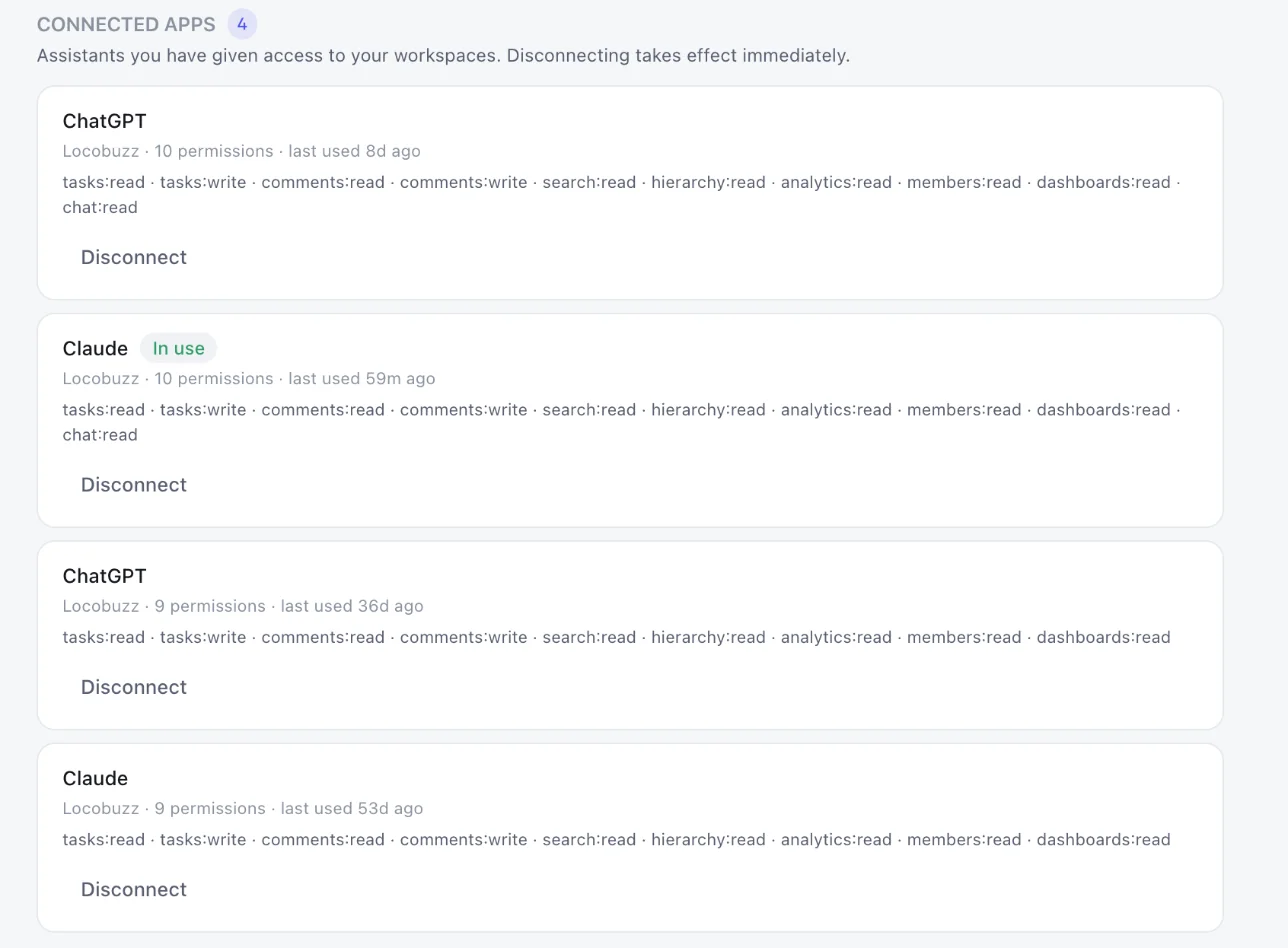
Connect again from Claude; the consent screen defaults to your previous choice and the new approval replaces it. To remove access, use Customize, Connectors, the three dots next to Planner.day, then Remove; or in Planner.day open Settings, Account, Tokens & connected apps and disconnect it there.
Questions
How do I add the Planner.day MCP server to Claude?
In Claude, open Customize, then the Connectors tab, search for Planner.day, open its entry and click Connect to Claude. Sign in to Planner.day, tick the workspaces Claude may reach on the consent screen, and click Allow. If you prefer to enter the address, choose Add, then Add custom connector, and use https://api.planner.day/api/mcp with Sign in now.
Does Claude need an API key or token for Planner.day?
No. Claude.ai and Claude Desktop sign in through a Planner.day consent screen and hold no secret. Claude Code can sign in the same way from its /mcp menu, or take a scoped token in a header if you want to hold the credential yourself.
What can Claude do in Planner.day?
Claude gets 43 tools: create and update tasks, change status and assignees, add comments, read sprints, dashboards and per-person analytics, search tasks, and read team chat and decisions. A sign-in grants ten permissions that cover 33 of those tools; the rest are granted to a token.
Can Claude delete tasks in Planner.day?
Only with the Delete tasks scope, which a sign-in does not request and which a workspace admin must allow. Deletes are soft, so a deleted task can be restored.
Which Claude plans can connect to Planner.day?
Per Anthropic's help centre on 20 November 2026: Free (one custom connector), Pro, Max, Team and Enterprise, in Claude.ai and Claude Desktop. On Team and Enterprise an Owner adds the connector and each member connects individually.
Which Planner.day plan includes the MCP server?
Basic and Pro. Basic is ₹500 and Pro ₹1,000 per user per month, billed in rupees with a GST invoice, and the first month on either plan is free. Planner.day is free for up to 5 people.
How do I disconnect Claude from Planner.day?
In Claude, open Customize, then Connectors, and remove Planner.day. In Planner.day, open Settings, Account, Tokens & connected apps and disconnect it. Either side ends the access.
New to the protocol? Read what an MCP server is. Comparing trackers? See which project management tools have MCP servers.
Connect Claude today.
Free for up to 5 people, and the first month on Basic or Pro is free.